
Version: V24.2
The Seismic Scan Vectorising (SSV) program converts a raster image of a scanned seismic section to sampled traces in a form suitable for further processing or output to SEG-Y tape.
For users of previous versions of SSV, the Windows 95/NT version contains significant enhancements :-
Files
For every scanned seismic profile, SSV uses three
files, the input raster file, the
parameter file and the output
trace file
The input raster file contains an image of a plotted seismic section, scanned from paper, microfiche or converted from a seismic plot file. Over sixty raster file formats, are supported, including several variations of TIFF and other common raster file types.
The Parameter File The parameters which control the vectorising process are in a file with extension .SV4. When you first run the program on a new profile no parameter file will exist for it. When you exit from the program the parameters will be saved in the file XXXX.SV4, where the XXXX.YYY is the name of the input raster file. There are two ways of generating the parameter file: - You can generate a new parameter file from scratch by editing the program defaults in the parameter editing menus, or - you can to use the special parameter file DEFAULT.SV4 as a "template" and alter only the parameters which change from one profile to the next.
The Trace File. The output traces are
written to a standard 3-S or SEG-Y trace file with extension .TR0 For ease of
data management the same name is used for all the files associated with a given
line, with the extension being used to identify the type of file. For example,
Line 12 of your survey, after vectorising and processing, would have the
files:-
LINE_12.YYY Raster File
LINE_12.SV4 Parameter File
LINE_12.TR0 Raw trace File
LINE_12.TR1 first processed trace File
The parameter file format in version 24 file (.SV4 extension) is slightly different from version 23 (.SV3 extension) Use the CVSV3to4 utility program if you wish to convert SV3 files to SV4.
now uses SeisObj and RasObj libraries, for compatibility with other Exploration Archivist applications
Added VDR algorithm. This algorithm enables full grey scale vectorization of Variable Density plots, giving improved dynamic range for this type of data
Added toolbar and rearranged menus. SSV still isn't as logical as it might be, but it's getting better !
Added interactive trace muting panel. This enables muting to be done with the original raster as a backdrop. Mutes can be optionally applied and stored in the trace headers, for later application.
Improved calibration. The calibration in version 23 sometimes suffered from instability around the edges of the grid. This was because grid points lying outside the triangulated area were incorrectly assigned a triangle within the grid. Outer grid points are now calculated by extrapolation from the nearest inner grid points - still not perfect, but a lot better.Some bugs been corrected and "Inc" and "Dec" buttons added for easier selection of calibration points
Time variant peak splitting in VAI method
For compatibility with LEA system version 3, recompiled using Delphi6, with runtime Borland packages. This results in a smaller load module, with faster loading time. Uses LynxLB31 libraries. Images for help file moved to images\SSV subdirectory.
Removed raster object, internal sbitmap is used directly. Removed seismic object, uses SEISIOObj instead. This is in preparation for version 25, which will use Lynx Viewcomp library. Replaced raster and trace file attribute displays, which were part of removed objects.
Corrected various minor bugs in baseline calculation.
max calibration points increased to 200
SSV is a standard Lynx Exploration Archivist program and is normally run from the LEA Launcher application. The SSV.EXE module requires a number of other LEA components in order to run properly. The program startup section in SSV.INI contains some configurable parameters
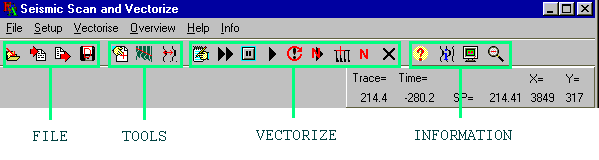
The main form for SSV has the usual MS-Windows style controls, displays and menus The buttons on the main toolbar are split into four groups
This panel at the top right of the main form, below the main toolbar, shows the position of the cursor on the main display both in X-Y pixel coordinates on the input raster file and in trace, shotpoint and time position in the output trace file.
X= horizontal pixel coordinate of cursor
Y= vertical pixel coordinate of cursor
Trace= trace number at the cursor
Time= time position in msec at the cursor
Line Name Line name for the current seismic profile
SP= Shotpoint number at the cursor position
This is the main display of the input raster file with vector information (traces, calibration points, timing lines) overlaid in colour
The main raster image shows the input raster file at normal scale, i.e. each pixel in the image maps to a pixel on the screen. This is overlaid by vectorized traces, calibration points and grids, trace base lines etc., depending on the selected mode or toolbar
Horizontal scroll bar enables horizontal scrolling of input raster image
Vertical scroll barenables vertical scrolling of input raster image
Status bar at the bottom of the main window shows program status information
The main tool bar has a group of buttons for enabling other specialised toolbars
 Calibration
Toolbar, for calibrating the raster image, prior to vectorizing
Calibration
Toolbar, for calibrating the raster image, prior to vectorizing Trace Space
Toolbar, for setting the nominal spacing between the seismic traces on the
raster image
Trace Space
Toolbar, for setting the nominal spacing between the seismic traces on the
raster image Muting Toolbar for setting and
applying mutes to the vectorized traces
Muting Toolbar for setting and
applying mutes to the vectorized tracesSSV can be driven from the conventional text menu, or from buttons on the main toolbar, which duplicate most of the menu functions. The. program main menu has six headings:-
Files Setup Vectorize Overview HelpInfo
File This main menu is for selecting input raster files and saving results and parameter files
 Raster
A list of the current raster files will be displayed, in the normal Open
File dialogue box. Select the one you want - if a trace file and parameter file
exist, having the same name as the raster file (but different extensions) SSV
will open them. If a trace file does not exist, SSV will create one with the
same name as the raster file and give it an extension .TR0. If a parameter file
with the name "default.SV4" exists, it will be used as a template for a new
parameter file, (see Set Default below) otherwise the program will create a
parameter file using the default values from its own .INI file.
 Load Params loads parameters from a
.SV4 parameter file
Load Params loads parameters from a
.SV4 parameter file
 Save
Params saves the current parameters in an SV4 format parameter file
Save
Params saves the current parameters in an SV4 format parameter file
 Set Default
This creates a new
parameter file "default.SV4" which will be used as a template when creating new
parameter files. Use this option to save effort when you are vectorising
several lines of the same vintage. Set up the first line and when you are
satisfied with the vectorising parameters, select Set Default to create a new
default.SV4 file. Select the raster file for the next profile, which will
inherit the vectorising parameters as previously set up.
Reset Traces
This file
menu option resets the .TR0 output trace file to a trace count of zero. You
will be prompted to confirm that you really want to reset the file, as all
traces in it will be erased. Use this option when you start vectorising a line
and find that you want to change the output trace length or sampling interval,
as defined in the OUTPUT parameter page. You can also reset a trace file that
has become corrupted for any reason.
Save and Exit
This exits
from the program, saving the current state of the trace file and parameter
file.
Quit This quits the program, without re-saving the current state of the trace file and parameter file
 Edit
Parameters. This starts the LEA parameter editor PrmEdit, to edit the currently loaded vectorizing
parameters. See the individual parameter pages for
detailed information
Edit
Parameters. This starts the LEA parameter editor PrmEdit, to edit the currently loaded vectorizing
parameters. See the individual parameter pages for
detailed information
This menu is for setting program options and vectorizing parameters.
The main menu Setup/Params option selects the LEA parameter editor. Note that while vectorizing, the button on the vectorizing tool bar will also select the parameter editor. SSV parameters are organised into "pages". (see the index of pages). Each page contains a group of related parameters. Three pages, OPTIONS, INPUT and OUTPUT are always be used, irrespective of the data being vectorised. Other pages are optional and their use will depend on whether the corresponding option has been selected on the OPTIONS page.
To edit a particular parameter page, select Params on the Exec menu and either click the forward arrow button in the editor window until the desired page appears, or select the desired page using the page editor's Select / Page menu.
If the page you require is not on the list, go back to the first (Options) page and make sure the required option is selected.
Trace Space MainForm/mnu_TraceSpace1
Calibrate on the Setup menu makes the calibration
tool bar visible
Overview of Calibration. Calibration is needed because of distortion or rotation of the image of the seismic section when viewed on on the scanned image. Seismic sections to be vectorized are divided into one or more rectangular "panels", each containing a continuous sequence of traces. Most sections will consist of a single panel, but where there are breaks in the trace sequence, due to splices, gaps, time discontinuities etc. several panels may be used.
Each panel is calibrated separately with a minimum of four corner points, defining the start and end trace numbers and start and end times of the traces. within the panel
Within each panel, the calibration points are triangulated, with an optimal mesh computed by DeLauney's algorithm. Each set of three vertices in a triangle defines an affine transformation to give the relationship between pixel coordinates and trace and time positions, within that triangle. A rectangular (or quadrilateral) section can be calibrated with just two triangles, defined by the four corner points. Where the section is distorted, extra points and triangles may be required for proper calibration.
Doing the Calibration. Before calibrating, you should ideally determine the number of traces to be vectorised in each panel. Set the start and end times and the number of traces to be vectorized for the output trace file, in the OUTPUT parameter page.
The Calibration Toolbar
The calibration tool bar contains controls for setting and adjusting the trace and time calibration of the seismic image.While calibrating, the trace or time position can be edited using the controls in the cursor location display on the top right af the main window.
Calibration Toolbar Labels

Trace On the cursor location panel - edit the trace number for the current calibration point
Time msec On the cursor location panel - edit the time for the current calibration point
Calibration Status a message in the centre top of the calibration toolbar, showing showing the status, or action to be taken, e.g. "point select" as above
Panel no. Shows which calibration panel is currently selected and the total number of panels, e.g. panel 1/2 would mean that the first panel of two panels is selected
Point no. Shows which point is selected in the current panel and the number of points in the panel. There is a minimum of four points per panel. The maximum is determined by the setting of maxcal at startup
Calibration Toolbar controls
There is a central block of four buttons, one for each of the four "corners" of a panel of seismic traces. When setting up, the four corner buttons establish the (trace, time) coordinates for the start and end traces of each panel to be vectorised.
 Top left button - select the origin or start time of the first trace to be
vectorized
Top left button - select the origin or start time of the first trace to be
vectorized Bottom right button - select the end time of the last trace to be
vectorized
Bottom right button - select the end time of the last trace to be
vectorized Top right button - select the start time of the last trace to be
vectorized
Top right button - select the start time of the last trace to be
vectorized Bottom left button - select the end time on the first trace to be
vectorized
Bottom left button - select the end time on the first trace to be
vectorizedThe status label will show which corner of the block of traces is being calibrated. You should do the top left corner first, followed by the bottom right corner - this allows the positions of the other two corners (top right and bottom left) to be estimated by SSV, so that the display will be correctly positioned when you come to set these points.
 Select calibration point on/off. In the "on"
state, clicking the cursor on the display will select the nearest calibration
point to the cursor and the point's trace and time values will be appear as
edit fields in the cursor position display. To select a calibration point,
click this button and position the cursor near the desired point. Click the
mouse and the nearest calibration point to the cursor will be selected and
illuminated.
Select calibration point on/off. In the "on"
state, clicking the cursor on the display will select the nearest calibration
point to the cursor and the point's trace and time values will be appear as
edit fields in the cursor position display. To select a calibration point,
click this button and position the cursor near the desired point. Click the
mouse and the nearest calibration point to the cursor will be selected and
illuminated.
 Go to next
calibration point. Positions the next calibration point in the centre of the
display, as the current point.
Go to next
calibration point. Positions the next calibration point in the centre of the
display, as the current point.
 Go to previous calibration point. Positions the
previous calibration point in the centre of the display, as the current
point
Go to previous calibration point. Positions the
previous calibration point in the centre of the display, as the current
point
 Delete current
calibration point. After deletion, the last calibration point (for the panel)
becomes the current point. The four corner calibration points cannot be
deleted.
Delete current
calibration point. After deletion, the last calibration point (for the panel)
becomes the current point. The four corner calibration points cannot be
deleted.
 This toggles On/Off the display of the underlying
triangulation used by the calibration
This toggles On/Off the display of the underlying
triangulation used by the calibration
 Show/hide the
calibration grid. To change the grid separation, go into the Params/Config menu
and edit the "Time Cal Grid" and "Trace Cal Grid" values
Show/hide the
calibration grid. To change the grid separation, go into the Params/Config menu
and edit the "Time Cal Grid" and "Trace Cal Grid" values
 Toggles (turns on and off) "grid snapping"
to the calibration grid - in the "on" state, as the cursor is moved over the
display, the nearest grid node is illuminated and the cursor position display
shows the trace and time value. If the cursor is clicked, trace and time edit
fields appear, with the values for the currently selected grid node. Edit these
values and click the cursor on the display to create a new calibration point at
the cursor location. To cancel, press the grid snap button again to toggle into
the "off" state before creating the new point. If you create an incorrect
point, you can edit or delete it using Cal point mode.
Toggles (turns on and off) "grid snapping"
to the calibration grid - in the "on" state, as the cursor is moved over the
display, the nearest grid node is illuminated and the cursor position display
shows the trace and time value. If the cursor is clicked, trace and time edit
fields appear, with the values for the currently selected grid node. Edit these
values and click the cursor on the display to create a new calibration point at
the cursor location. To cancel, press the grid snap button again to toggle into
the "off" state before creating the new point. If you create an incorrect
point, you can edit or delete it using Cal point mode.
 Increment or
decrement the current calibrationpanel
Increment or
decrement the current calibrationpanel
PI Create a new calibration panel after the current panel
PD Delete the current calibration panel
 To exit from calibration, preserving current state of
calibration, press the button marked with a red tick
To exit from calibration, preserving current state of
calibration, press the button marked with a red tick
 Quit calibration - closes calibration
toolbar
Quit calibration - closes calibration
toolbar
To calibrate the corners, first press the Top Left corner button and, using the Overview window if necessary, position the display so that you can see the start time position (usually time zero) on the first trace. Position the cursor on this point and click - a cross will appear. You can click again to re-position the cross, or reset the trace and time values in the edit display to correspond to the actual point selected in trace and time.
Repeat the above procedure for the Bottom Right corner, again checking that the trace number and time position are correct in the edit display. If this is the first time that this point has been set, the number of traces will be estimated from the nominal trace spacing and the width of the panel. Adjust the no. of traces to correspond with the correct number for the panel.
Proceed to the top right and bottom left corners, which should already be approximately correct, by calculation from the first two corners.
When the corner calibration is completed, click the four corner buttons in turn to check that the corner points are correctly positioned and that the times and trace numbers are correct.
To check the raster image for linearity, press the "show grid" button. A grid will appear. The grid spacing depends on the settings in Setup/Config "Trace Cal Grid" (horizontal) and "Time Cal Grid" (vertical). Check that the grid lines overly the correct trace base line and timing line positions. Check this by moving the cursor and reading the trace and time on the Position display. If there is unacceptable distortion, you can improve the fit by adding more calibration points.
To add an extra calibration point: First, turn on Grid Snapping - when you move the cursor, the nearest grid node to the cursor will be illuminated and the trace/time value indicated on the display. Click the mouse to select this ( illuminated ) grid node. Position the cursor over the underlying raster image where the grid node ought to be and click again - a new calibration point will be inserted and the grid recalculated, so that the grid node now lies on the clicked point.
Checking the calibration The triangulation of the calibration
points should completely cover the area to be vectorised. Use the triangle
button to
display the underying triangulation for the calibration field (red lines will
appear on the section). You should make sure that all the traces to be
vectorized lie within the triangulated area, i.e. the top bottom, left and
right sides of the area to be vectorised should be enclosed by a continuous red
line.
Before vectorizing a trace, SSV must determine its lateral position (Trace Location). The position of the first trace is determined by the X coordinate of the top left calibration point. For the next and subsequent traces, there are two ways in which SSV can position the origin of a trace, corresponding to the trace location search ON or OFF on the Options parameter page.
Trace spacing by calibration. This mode is invoked when trace location search on the Options page is NO (disabled). The calibrated position of a trace, as interpolated from the nearest three calibration points, determines its position.Use this method when the trace spacing on the image is reasonably regular and the vectorizing algorithm is VAD or VAI, which are tolerant of irregularities in trace spacing. On each panel, the number of traces is determined by the trace numbers specified at the four corner calibration points. The start position of a given trace is determined from the nearest calibration points. The trace spacing tool is disabled in this mode.
Trace spacing by search. Use this method (Trace location search on the Options page set to YES) when the trace spacing on the raster image is uneven. A given trace's approximate position is determined during vectorising from the X-position of the previous trace, plus the trace spacing. The trace location search then "locks on" to the exact position of the trace. Note that the resulting number of traces in the panel may not be the same as the number of traces by the corner calibration points.
Selecting Trace Space makes The Trace Space tool visible. When a
new, uncalibrated raster file is loaded, the trace spacing parameter is
initially set to the value on the INPUT SCANNED IMAGE
page, derived from the default parameters. This defines the nominal distance in
mm or inches between successive traces, which is used in two ways.
First, the trace spacing determines the scale used by other parameters involving trace deflection. For example, the maximum trace amplitude is measured as a multiple of the trace spacings. To convert it to pixels, the program multiplies it by the trace spacing (in inches or mm) and divides by the resolution in pixels per inch or mm. This means that if you rescan the section at a different resolution or scale, all the parameters reamain unchanged, except for the resolution.
Secondly, the trace spacing parameter is used for locating traces and calculating the number of traces across the section (or panel).
To adjust the Trace Spacing (Trace Location search is YES, i.e. enabled). Before calibration, set the trace spacing manually in the INPUT parameter page, when you are unsure of the total number of traces between the left and right calibration points, or are intending to use the trace location search option.
on the main toolbar invokes the Trace space tool.

The trace space tool has a status message (top right), the current trace spacing (centre) and the number of traces which would result by dividing the distance between the top left and bottom right calibration corner points by this trace spacing.
The buttons on the Trace space tool are:-
 Set the trace spacing to the calibration
corner points. The trace spacing is calculated from the distance between the
top left and bottom right calibration corner points, divided by the number of
traces set for the bottom right calibration point.
Set the trace spacing to the calibration
corner points. The trace spacing is calculated from the distance between the
top left and bottom right calibration corner points, divided by the number of
traces set for the bottom right calibration point. Displays the
trace space graticule. Press this button, then position the cursor over a trace
(usually the first trace on the section) and click. A red graticule will
appear, with a tick spacing equal to the current trace spacing. You can
reposition the rightmost tick on the graticule by clicking on the image. The
rightmost tick will then be positioned at the cursor position. When the trace
spacing is correct, the ticks in the graticule should exactly overlay the trace
base lines on the image. The graticule can also be adjusted using the increase
and decrease spacing buttons (see below). Press the Apply button
when the
spacing is correct. Decreases the
graticule length by approx one trace spacing. Increases the graticule length by approx one
trace spacing Apply the current trace spacing Close the trace space tool (does not
automatically apply the indicated trace spacing)
Displays the
trace space graticule. Press this button, then position the cursor over a trace
(usually the first trace on the section) and click. A red graticule will
appear, with a tick spacing equal to the current trace spacing. You can
reposition the rightmost tick on the graticule by clicking on the image. The
rightmost tick will then be positioned at the cursor position. When the trace
spacing is correct, the ticks in the graticule should exactly overlay the trace
base lines on the image. The graticule can also be adjusted using the increase
and decrease spacing buttons (see below). Press the Apply button
when the
spacing is correct. Decreases the
graticule length by approx one trace spacing. Increases the graticule length by approx one
trace spacing Apply the current trace spacing Close the trace space tool (does not
automatically apply the indicated trace spacing)The display shows the total number of traces, between the calibration endpoints, for the current trace spacing
The
trace mute button invokes the trace muting tool bar.
Trace muting enables unwanted noise above the start time of the vectorized traces to be eliminated, by picking a mute line across the raster image. The mute values are stored in a file having the same name as the raster file and .TR0 file, but with extension .MTE. This file can be used later to reapply the mute during processing.
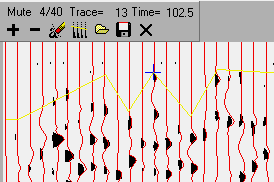
 Add a mute point at the cursor position
 Remove the nearest mute point to the cursor
 Applies the mutes to the vectorized
traces
Applies the mutes to the vectorized
traces
 Open
dialog to load an existing mute file
Open
dialog to load an existing mute file
 Save dialog to copy mutes to a an ASCII
file
Save dialog to copy mutes to a an ASCII
file
Closes the mute tool bar (does not
automatically save the mutes)
Config This parameter page enables diagnostic displays to be selected and input raster file type to be configured. These values are stored in a "hidden" page in the parameter file.
Baseline This switches the display of the trace baselines on or off. Use this display to verify that the skew is correctly set and to help in adjusting the baseline tracking parameters. When baseline tracking is off, the baselines will be blue; if it is on, good segments will be blue and bad segments will be yellow.
Raw Trace Display This display enables you to show the raw pixel values used in generating the output trace. They are coloured green. by default. You may need to turn off the output trace display to see anything, as normally the red output traces will overlay most of the green raw trace pixels.
Output trace display This enables the red output trace overlay display to be turned on and off. Timing When timing line search is turned on, timing lines which have been found will be marked on the screen display.
Segment Check This turns trace segment integrity checking on. (This will slow the program down and may cause a lot of activity in the progress monitor display.) Use this option if SSV hangs or crashes consistently at a particular point on the input raster - the results may help us to identify the cause of the problem.
Trace Statistics This shows enables percentages of various types of segments found, after each trace is processed.
The main menu is duplicated by a group of buttons on the main toolbar. The buttons which control trace vectorizing are in the middle.

 Continue
Vectorizing Starts vectorizing at the current trace and continue until all
traces have been completed, or the stop button is pressed, or the program halts
due to an error condition.
Continue
Vectorizing Starts vectorizing at the current trace and continue until all
traces have been completed, or the stop button is pressed, or the program halts
due to an error condition.
 Stop
vectorizing pauses vectorizing at the current trace
Stop
vectorizing pauses vectorizing at the current trace
Single
trace vectorizes the next trace
 Redo
trace re-vectorizes the most recently vectorized, or current trace and then
halts.
Redo
trace re-vectorizes the most recently vectorized, or current trace and then
halts.
 Go to
trace button displays a panel which enables you to set the trace number for
the next trace to be vectorised
Go to
trace button displays a panel which enables you to set the trace number for
the next trace to be vectorised
Parameters selects the parameter editor to edit the
vectorising parameters. Note that when you close the editor, having entered
through this button, SSV will "remember" which page you were editing when you
click the button again.
Exit
stops vectorizing and de-activates the vectorizing panel
 Go at
trace starts vectorizing at the selected trace.
Go at
trace starts vectorizing at the selected trace.
 Set origin button enables the origin and trace
number to be reset, using the Trace Origin Panel
Set origin button enables the origin and trace
number to be reset, using the Trace Origin Panel
Trace Origin tool When this panel is visible, the origin can be reset to the trace selected by the control on the panel. Set the trace number and move the cursor to the position on the raster corresponding to the origin of this trace. Click the OK button to reset the origin, or cancel to revert to the current origin.
At Trace shows the current trace number
Select Trace enables the current trace to be reset to any number within the range of traces present in the output trace file.
View Cursor shows a panel with the cursor position both in pixels and trace time coordinates.
 Shows the compressed overview of the raster
image, with the main view panel depicted as a moveable rectangle. Drag the
rectangle to display the desired postion on the image in the main view. To hide
the overview, click its close icon in the top right corner.
Shows the compressed overview of the raster
image, with the main view panel depicted as a moveable rectangle. Drag the
rectangle to display the desired postion on the image in the main view. To hide
the overview, click its close icon in the top right corner.
The Help menu is active at all times. To get more detailed help about a particular control, display or parameter, place the cursor over the item on SSV's display and press the F1 key, or go to the top of this file
About About this version of SSV. Shows the current version number, which you should always quote if you are having problems with using the program
 Raster shows information about the input raster
file object
Raster shows information about the input raster
file object
 Tracesshows information about the output trace file
object
Tracesshows information about the output trace file
object
Meter shows the current state of the dongle, used for metering traces, if fitted
SSV uses the following parameter pages:
Vectorizing Method :
(type option,
VA, VAWG, VAI, VAD,VDR )
There are five options for dealing with most types
of display, over a range of display quality. Each method has an individual
parameter page or pages. For more details on the methods and when they should
be used, see the corresponding parameter pages.
VA Variable Area only. Use with high quality VA data or for VA/Wiggle data for which the troughs are "washed out", but the peaks remain well defined. Set the parameters on the VA parameter page.
VAWG Variable Area with Wiggle. Uses the VAWG +VE PEAKS page for the peaks with additional trough tracking for the wiggle (negative) parts of the trace, controlled by the VAWG -VE TROUGHS page.
VAI Variable Area with Integration. A more robust, but less accurate, form of VA which can tolerate less clearly defined peaks than the VA method. Mainly used on medium to poor quality Variable Area and Variable Area/Wiggle displays. Uses the VAI page.
VAD Variable Area by Density. Still more robust than VAI, but less accurate. Will work on very poor data but output lacks dynamic range. Good for high frequency, low amplitude data. VAD can also be used on Variable Density data which have been scanned in photo mode. Uses the VAD page.
VDR Variable density reconstruction. This vectorizes variable density, or "grey scale" displays in which seismic amplitude is represented by the density of grey tone on the paper. This was used historically in the early days of seismic exploration, often to produce single fold coverage records. These sometimes benefit spectacularly from deconvolution after vectorizing. VDR requires an input grey scale (4 or 8 bit per pixel) file. Uses the VDR page.
The input file should be scanned as greyscale and the Grey threshold option set appropriately
DUMMY creates "dummy" or "null" output traces, in which all samples are zero. This can be used for creating zero traces in block gaps and over index lines.
Traces in Blocks :
(type option,
YES, NO) Use this option to determine the trace positions when the traces to be
scanned are in regular blocks with dummy traces in between. This selects the
TRBLOCKS page.
Trace Location Search :
(type
option, YES, NO) If YES, SSV searches for horizontal location of each trace,
individually, rather than relying on average trace spacing derived from
calibration, or positions calculated by the traces in blocks option. This
selects the TRACELOC page.
Baseline Search :
(type option, YES,
NO) The horizontal position of each trace zero line will be tracked, as a
function of time. Almost essential for VA and VAWG, can be helpful for VAI and
VAD methods. This selects the BASELINE page.
Time Origin Search :
(type option,
YES, NO) Search for individual time zero for each trace. Allow timebreak
offset. This selects the TORIGIN page.
Timing Line Search :
(type option,
YES, NO) Search for timing lines and suppress their effect on trace amplitudes.
Compulsory if timing line synchronisation is used. This selects the
TIMING page.
Synchronize timing :
(type option,
YES, NO) Use timing lines for correcting timing of output samples dynamically,
rather than relying on nominal time scale. This will work for all vectorising
methods, but is only recommended for data on which the timing lines are very
clear. There is no page associated with this option. In practice it is often
easier to leave timing synchronisation off and to correct any time distortion
later using the Seismic toolkit. There is no page associated with this
option.
OutPut Traces to file :
(type
option, YES, NO) Normally this option will be selected but you may want to
suppress trace output while testing the effect of parameter changes. This
selects the OUTPUT page.
Bandpass Filter :
(type option, YES,
NO) You will nearly always need a low cut filter for removing bias. A high cut
is often helpful, and essential if using the VAD method. You can apply a filter
here, or in a later stage of processing. Uses the FILTER
page.
Client :
(type string) If present, the
client name stored in the raster file will be transferred to this field (but
this only works with some types of raster file). The client name will appear in
the output trace file header and in SEG-Y tapes or files generated from it. If
no client name was entered in the raster file, you can enter it here.
Line :
(type string) The seismic
profile name.If present, the description in the raster file will be transferred
to this field. The line name will appear in the output trace file loader and in
subsequent SEG-Y tapes or files generated from it.
Resolution pixels :
(type single,
limits 1 to 600) The resolution of the input raster file, if stored, will be
transferred to this field. Resolutions are in pixels/mm or pixels/inch - see
resolution units.
per (unit):
(type option, in, mm) The
units, in inches or millimetres, for the resolution pixels (see above).
Orientation code :
(type short
integer, limits 0 to 7) A numeric code which determines the transformations
required to bring the scanned image to the correct orientation, i.e. with time
zero at the top and trace numbers increasing from left to right.
Image Polarity
(type short integer,
limits 0 to 1) Determines whether to invert the colour of the input scanned
image. If the traces appear white-on-black, reverse the polarity by changing
this value from 0 to 1 or 1 to 0.
Grey Threshold
(type short integer,
limits -1 to 255) If the input raster file is a "grey scale" type, having more
than one bit per pixel, use this parameter to set a threshold between 0 and
255, for conversion to the 1-bit per pixel image used internally by SSV.
If the grey threshold is set to -1, no thresholding is applied and the image will be stored internally as a grey scale image. This option should only be used for the VDR vectorizing method
Raster File Extension
(type string) sets
the file extension type for the input raster file - this is compared with the
actual raster file on loading and a warning given if the raster file has
changed. This should correspond with one of the raster file extensions defined
by the LEA Raster Object
Trace space in\mm :
(type single,
limits 0.005 to 20.0) The spacing in mm between adjacent traces on the input
seismic section. If the trace spacing on the raster image varies significantly,
enter here the average trace spacing and consider using the Trace Location
option on the Vectorising options page. If the traces
are in blocks, enter the inter trace spacing within the blocks and use the
Traces in Blocks option
If you are not using the Trace Location option, the value in this field will be used during initial calibration to determine the approximate number of traces across the panel, when the second (bottom right) calibration point is set for the first time.
Trace zero-peak tr :
(type single,
limits 0 to 20) The maximum expected trace excursion, (positive or negative)
measured in traces, from the trace baseline. Excursions larger than this will
be ignored. Interpolation of missing peaks or troughs will clip at this
amplitude.
Time scale mm/sec :
(type single,
limits 10 to 1000) The time scale of the input section. What is required here
is the actual time scale of the scanned section, which may differ from the
nominal time scale on the section side label. This parameter should be adjusted
so that the vectorised trace ends at exactly the right time on the View
display. If the Timing Line, Search or Sync options are to be used, the value
entered here must be sufficiently accurate for the timing line search to "lock
onto" the timing lines.
If no Baseline search is used, the skew value determines the line down which the baseline is presumed to go. Enter a positive number if the bottoms of the traces are skewed to the right, negative if skewed to the left.
Length units :
(type option, in, mm)
This shows the length units in use for measurements on the seismic section.
Usually mm.
Start time msec :
(type single, limits -2000 to 20000) The
seismic 2-way time for the first output sample on each output trace, in
milliseconds. Can be negative if the first sample is above the datum level.
End time msec :
(type single, limits
-2000 to 20000) The seismic 2-way time to correspond with the last sample on
each output trace, in milliseconds.
Mute from start msec :
(type single,
limits 0 to 10000) All traces will be muted (set to zero) for this number of
milliseconds from the beginning. Enables "rubbish" such as stack fold pips and
datum lines to be suppressed. If there is no suitable timing line at the true
start time of the traces, you may be able to use a border above the traces
instead, together with suitable mute and start time delay (see
TORIGIN page).
Sample interval msec :
(type single,
limits 0.1 to 10.0) The output sample interval will usually be 4 milliseconds.
If the scanned section appears to contain frequencies in excess of 75 Hertz, it
is advisable to use a finer sample interval, such as 2 or even 1 milliseconds.
Look at the side label to ascertain the sample interval used in the original
processing. There is only a small time penalty in using a smaller sample
interval, but the size of the output trace file will be increased
proportionally.
The number of output samples N, per trace is given by:
N = 1 + (End Time - Start Time) / Sample Interval
Ampl. Scale Factor :
(type single,
limits 0.001 to 1000000.0) The natural output trace amplitude units are pixels
of trace deflection, with a scale factor of 1.0. The trace amplitudes can be
changed by application of a constant scale factor.
Start at trace no :
(type short
integer, limits 1 to 32000) The number of the trace in the output file at which
to start, or restart vectorising. Normally 1 for a new output file.When
re-vectorising part of a line, enter the starting trace number here. If this
number is greater than the number of traces in the trace file SSV will start at
the trace after the last one in the file.
End at Trace No. :
(type short
integer, limits 1 to 32000) The number of the trace in the output file at which
to stop vectorising. SSV will stop when the trace file contains this number of
traces or when the end of the raster image is reached, whichever happens
first.
SP for 1st o/p trace :
(type single,
limits -1000000 to 1000000) Enter the Shotpoint number associated with the
first trace vectorised on the section. This is stored in the output trace file
header, so that the section can be annotated with correct Shotpoint
numbers.
o/p trace SP incr. :
(type single,
limits -1000000 to 1000000) Enter the Shotpoint increment per trace on the
input section. This is used with the SP for 1st O/P trace (see above) to
generate shotpoint numbering on subsequent plots of the traces. The increment
can be fractional or negative.
o/p trace spacing m :
(type single,
limits 1.0 to 1000.0) Enter the actual distance between traces in m. Although
not used by SSV, it will be stored in the trace file header for use in later
processing.
Trace File Type :
(type option,
SEGY, LYNX) SSV will output trace files in standard SEG-Y or in Lynx's own
in-house trace file format. LYNX format is the default and is recommended,
because SEG-Y format does not contain some of the trace header information
saved by SSV for use in other Lynx 3-S programs.
Sample Format bytes :
(type short
integer, limits 1 to 4) The output trace samples can be in 1 or 2 byte fixed
point or 4 byte floating point format. The default is 1 byte, giving a dynamic
range of -128 to +127 (about 46 dB), which is generally adequate for scanned
data. Note that SEG-Y Trace File Type does not support 1 byte sample
format.
The Variable Area by Density (VAD) method will produce a reasonable looking result from almost any seismic section, no matter how poor the original print. However, when compared with the VA, VAWG and VAI methods on medium to good quality data , it will be found that the dynamic range and "character" of the reconstructed data have suffered.
The VAD method is quite simple. Once the trace baseline has been established (either using Baseline tracking, or more usually just the skew value on the INPUT page) the average number of black pixels per unit area is counted along the baseline and this value is used as the trace amplitude at a given sample position. The raw sample values are then filtered with a bandpass filter to eliminate the trace bias (low cut) and to "damp" the high frequency transitions (high cut).
You do not have to use baseline tracking with the VAD method. The baseline will follow the skew entered on the INPUT page. If the data are good enough for baseline tracking to work reliably, you should consider using the VA or VAWG method.
Offset to Baseline tr :
(type single,
limits -2.0 to 2.0) The horizontal offset, in traces of the centre of the
averaging rectangle from the trace baseline. If you are using a baseline
search, set to 0.5 trace spacings, otherwise set to zero.
Width to average tr :
(type single,
limits 0.1 to 10) This determines the width of the rectangle in which pixels
are counted in the across trace direction, in arriving at the raw trace sample
value. Normally set to 1 trace. If set to greater than one trace spacing,
lateral smoothing will result.
Time to average msec :
(type single,
limits 1 to 100) The height of the rectangle, in the time direction, used in
counting pixels. This should be approximately equal to the output sampling
interval. If it is too small there is a risk of aliasing. If too large the high
frequency content in the data will be reduced.
These parameters are used for tracking the peaks in high quality Variable Area data (no wiggles in the negative parts of the waveform)..
Baseline Offset +/- tr :
(type single,
limits -1 to 1) This allows the reference zero amplitude line to be offset from
the trace baseline (always use a baseline search). This may aid recognition of
peaks and troughs when the true trace baseline is poorly defined. For high
quality data, set this parameter to zero. Otherwise try values between -0.25
and +0.25.
Gap Pk - Next trace tr :
(type single,
limits 0 to 1) Set this parameter only in the (rare) case that there are gaps
between the traces, i.e. there is no overlap between a trace's peaks and the
baseline of its neighbour to the right. Set this parameter to the trace spacing
minus the maximum positive amplitude of the traces, i.e. to the size of the
gap.
Min. Peak duration msec :
(type
single, limits 0 to 1000) The minimum duration for a trace segment to be
definitely identified as a peak. Increase this parameter to reject short trace
segments which are not peaks (i.e. parts of troughs from adjacent traces).
Min. Peak thickness tr :
(type single,
limits 0 to 2) Set this to the minimum thickness of trace to be recognised as a
positive peak. Increase this parameter to prevent parts of high amplitude
troughs from traces to the right being wrongly recognised as peaks.
Check characteristics :
(type option,
R, A, S, RA, RS, AS, RAS, NONE ) The peak duration and thickness criteria will
sometimes fail to discriminate between a true peak and a fragment of a trough
from an adjacent trace, or general noise caused by interference between high
amplitude wiggles. To help improve discrimination, you can select any
combination of the three checks for Shape, Amplitude and Rise time, denoted by
S, A and R.
For example RA will invoke Rise time and Amplitude checking, but no shape checking.
The A - Amplitude check looks to see whether the previous trace was a peak or a trough over the time duration of the trace segment under test. If it was a trough, then the segment under test will not be classified as a peak. This leaves its classification open for the trough search algorithm to decide.
The R - Rise Time check tests the leading edge of the peak to see if it exceeds the maximum slope entered below. The aim is to try and reject the "blobs" often found in large troughs when adjacent high amplitude traces interfere.
The S - Shape check looks at short time zones before and after each peak under test to see whether there are recognisable negative troughs attached.
Max. Peak Slope px/px :
(type single,
limits 0 to 20) This places an upper limit on the slope which can be assigned
to the leading and trailing edges of a peak. The slope is in pixels of trace
deflection per pixel in the time direction, i.e. dimensionless number. The
value will normally be between 1 and 10. A higher value will generally increase
the output amplitude in "black" (high amplitude) regions of the input, but may
introduce unwanted amplitude fluctuations from trace to trace.
Slope update rate :
(type single,
limits 0.001 to 1.0) The slope measurements on the edges of each overlapping
peak forming part of a continuous seismic event are averaged with those on
adjacent peaks. This prevents inaccuracies in the slope estimates for a single
peak causing unrealistic fluctuations in the amplitude of interpolated parts of
the output trace. The estimated slope is given by:
Estd.Slope = U x Measured Slope + (1 - U) x Previous Estd Slope
where:
U is the Peak Slope Update Rate, between 0.0 and 1.0;
Previous Est.Slope is the slope which was estimated for the previous trace;
Measured Slope is the slope measured from the current trace.
If U is set to 1.0 there is no averaging. Conversely, if U is set to zero no updating is done so that all the slopes will be the same as the measured slope for the first peak in that particular event. The number of traces over which averaging takes place is roughly 1/U, so in practice you won't notice much difference unless U is less than 0.5. A value of 0.1 will give appreciable smoothing and 0.01 will give a great deal of smoothing.
Peak Repair msec :
(type single,
limits 0.0 to 50) This parameter enables high amplitude (i.e. overlapping)
peaks to be merged together (repaired) if they are closer than the time
interval entered here. This helps to smooth over the occasional doublet caused
by holes or white patches in the peaks, due to poor image quality. If these are
causing a lot of problems, you should consider using VAI instead of VA. Zero will give no repairs.
In the VAI method, a raw trace is estimated in the same manner as for VAD, but the missing peak and trough information is regenerated by cubic interpolation, in the same way as for the VA method. This gives a trace with better dynamic range than the VAD method, but without the baseline tracking requirement for VA and VAWG.
You do not have to use baseline tracking with the VAI method. The baseline will follow the skew determined by the calibration. If the data are good enough for reliable baseline tracking, you might consider using VA or VAWG.
Width to average tr :
(type single,
limits 0.1 to 10) This determines the width of the rectangle in which pixels
are counted in the across trace direction, in arriving at the raw trace sample
value. Normally set to 1 trace. If set to greater than one trace spacing,
lateral smoothing will result.
Zero Threshold tr :
(type single,
limits 0.0 to 1.0) Any residual trough information present on the scanned image
will appear on the raw trace as low amplitude peaks. Set this parameter to the
average thickness of the residual troughs to remove this trace bias before
interpolation. Any amplitude below this value will be then regarded as trough
and interpolated.
Max. Slope px/px :
(type single,
limits 0 to 20) This sets an upper limit on the slopes calculated from the raw
trace and used in interpolating missing peaks and troughs. The units are
dimensionless, i.e. pixels of trace deflection per pixel in the time
direction.
A value of about 2.5 is usual for typical data. Increasing this value will increase the maximum amplitudes seen in the output section.
Slope update rate :
(type single,
limits 0.001 to 1.0) The slope measurements on the edges of each overlapping
peak forming part of a continuous seismic event are averaged with those on
adjacent peaks. This prevents inaccuracies in the slope estimates for a single
peak causing unrealistic fluctuations in the amplitude of interpolated parts of
the output trace.
If set to 1.0 there is no averaging. Conversely, if set to zero no updating is done so that all the slopes will be the same as the measured slope for the first peak in that particular event. The number of traces over which averaging takes place is roughly 1/Slope Update Rate, so in practice you won't notice much difference unless the value is less than 0.5. A value of 0.1 will give appreciable smoothing and 0.01 will give a great deal of smoothing. ( see the slope update rate on the VA parameters page)
Peak Repair msec :
(type single,
limits 0.0 to 50) This parameter enables high amplitude (i.e. overlapping)
peaks to be "repaired". On a weak print, black areas are often differentiated
so that the edges of black areas are strong but the middles are "washed out".
This results in single peaks being split into doublets, because the integrated
amplitude is reduced halfway across such a peak.
Set the peak repair parameter to a value slightly greater than the average width in milliseconds of the gap in the doublets. The two peaks will then be treated as a single overlapping peak.
Note that genuine troughs may be interpreted as gaps in peaks and disappear if this value is set too large.
Do Peak Splitting
(type option, Yes or
No) Where peaks are very close together on the original, they may not be
properly resolved on the output trace. This problem is compounded by the wiggle
parts of adjacent traces interfering with each other and partly or completely
filling the space between the peaks with black pixels, so the the peaks appear
merged together. Use peak split to separate such peaks into a doublet. Any peak
longer than the time value in msec defined below will be split into a
peak-trough-peak sequence whose total length is equal to the length of the
original peak.peak split value. .
(type option, Zero, Mute or Datum) . You can determine the datum for the tive variant splitting. Zero means that no datum will be added to the times specified below. Mute means that the existing waterbottom mute will be added to the time specified below. The Constant option adds the time entered in the next field to the time values.
Datum Time(type single, limits -1000.0 to 20000.0) When using the Constant Datum option above, the time which will be added time to be added to the time fields below, to calculate the time at which the peak lengths will be applied.
The peak lengths in milliseconds are entered as a set of time - length pairs. The peak length will be interpolated. The peak length to split should typically be about 24 to 32 msecs at the top of the section and 40 to 60 msecs at the bottom, depending on the frequency content of the data. If peaks are becoming split when they should not be, reduce the length value slightly at that time. If peaks fail to split, decrease the peak length to split slightly.
This page is essentially the same as the VAREA page, used for VA only data.
Baseline Offset +/- tr :
(type single,
limits -1 to 1) This allows the reference zero amplitude line to be offset from
the trace baseline (always use a baseline search). This may aid recognition of
peaks and troughs when the true trace baseline is poorly defined. For high
quality data, set this parameter to zero. Otherwise try values between -0.25
and +0.25.
Gap Pk - Next trace tr :
(type single,
limits 0 to 1) Set this parameter only in the (rare) case that there are gaps
between the traces, i.e. there is no overlap between a trace's peaks and the
baseline of its neighbour to the right. Set this parameter to the trace spacing
minus the maximum positive amplitude of the traces, i.e. to the size of the
gap.
Min. Peak duration msec :
(type
single, limits 0 to 1000) The minimum duration for a trace segment to be
definitely identified as a peak. Increase this parameter to reject short trace
segments which are not peaks (i.e. parts of troughs from adjacent traces).
Min. Peak thickness tr :
(type single,
limits 0 to 2) Set this to the minimum thickness of trace to be recognised as a
positive peak. Increase this parameter to prevent parts of high amplitude
troughs from traces to the right being wrongly recognised as peaks.
Check characteristics :
(type option,
R, A, S, RA, RS, AS, RAS, NONE) The peak duration and thickness criteria will
sometimes fail to discriminate between a true peak and a fragment of a trough
from an adjacent trace, or general noise caused by interference between high
amplitude wiggles. To help improve discrimination, you can select any
combination of the three checks for Shape, Amplitude and Rise time, denoted by
S, A and R.
For example RA will invoke Rise time and Amplitude checking, but no shape checking.
The A - Amplitude check looks to see whether the previous trace was a peak or a trough over the time duration of the trace segment under test. If it was a trough, then the segment under test will not be classified as a peak. This leaves its classification open for the trough search algorithm to decide.
The R - Rise Time check tests the leading edge of the peak to see if it exceeds the maximum slope entered below. The aim is to try and reject the "blobs" often found in large troughs when adjacent high amplitude traces interfere.
The S - Shape check looks at short time zones before and after each peak under test to see whether there are recognisable negative troughs attached.
Max. Peak Slope px/px :
(type single,
limits 0 to 20) This places an upper limit on the slope which can be assigned
to the leading and trailing edges of a peak. The slope is in pixels of trace
deflection per pixel in the time direction, i.e. dimensionless number. The
value will normally be between 1 and 10. A higher value will generally increase
the output amplitude in "black" (high amplitude) regions of the input, but may
introduce unwanted amplitude fluctuations from trace to trace.
Slope update rate :
(type single,
limits 0.001 to 1.0) The slope measurements on the edges of each overlapping
peak forming part of a continuous seismic event are averaged with those on
adjacent peaks. This prevents inaccuracies in the slope estimates for a single
peak causing unrealistic fluctuations in the amplitude of interpolated parts of
the output trace. The estimated slope is given by:
Estd.Slope = U x Measured Slope + (1 - U) x Previous Estd Slope
where:
U is the Peak Slope Update Rate, between 0.0 and 1.0;
Previous Est.Slope is the slope which was estimated for the previous trace;
Measured Slope is the slope measured from the current trace.
If U is set to 1.0 there is no averaging. Conversely, if U is set to zero no updating is done so that all the slopes will be the same as the measured slope for the first peak in that particular event. The number of traces over which averaging takes place is roughly 1/U, so in practice you won't notice much difference unless U is less than 0.5. A value of 0.1 will give appreciable smoothing and 0.01 will give a great deal of smoothing.
Peak Repair msec :
(type single,
limits 0.0 to 50) This parameter enables high amplitude (i.e. overlapping)
peaks to be merged together (repaired) if they are closer than the time
interval entered here. This helps to smooth over the occasional doublet caused
by holes or white patches in the peaks, due to poor image quality. If these are
causing a lot of problems, you should consider using VAI instead of VAWG. Zero will give no repairs.
This is the second page of parameters associated with VAWG trace vectorising. These parameters enable wiggle trace troughs (-ve parts of traces) to be identified and tracked, once the peaks have been found using the VA parameters on the first page.
Search Method :
(type option, Analog,
Digital, Model) The appearance of the negative troughs will depend very much on
the type of plotter used to produce the original seismic section. Some types of
low resolution digital plotter (e.g. Old Versatecs) produce a very "jaggy"
trace which increases in thickness at high slopes much more than the trace
produced by an analogue plotter.
This parameter enables the program to allow for the expected character of the troughs. Generally it's better to use the Analog option with trace thickness set to anything up to about 0.4. If you use the Digital option, trace thickness should be set to less than 0.25.
Model method is not implemented.
Max trace thickness tr :
(type single,
limits 0 to 1) This parameter is used to reject negative parts of the trace
which are unreasonably thick. Set to the maximum expected width, in the
x-direction, of the trace in a negative trough, where the slope is not too
steep, i.e. in the centre of a low amplitude trough. In digital mode SSV
attempts to compensate for the increase in x -thickness as the trace slope gets
steeper.
Start search width tr :
(type single,
limits 0 to 1) When SSV is searching for a run of black pixels along the
x-direction, corresponding to a part of a trough segment, the starting
x-co-ordinate for the search is derived from a previously identified adjacent
segment of the trace. This parameter defines the width of the search window, in
traces centred on the estimated trace position. If no pixels are found within
the window the segment is marked as Bad, otherwise further tests are applied to
verify the type of segment.
A Start Search Width of about 0.1 to 0.3 of the trace separation usually works quite well.
If the Start Search Width is too large, there is a risk that part of a neighbouring trace will be wrongly located and the output trace will appear to "jump" onto a neighbouring trace in places. If too small, errors in estimating the position of the trace will cause the actual trace to fall outside the search window and the segment to be marked as bad.
End search width tr :
(type single,
limits 0 to 2) When SSV fails to locate a valid trace sample, the x-search
range is expanded and the search re-tried. The search may continue for several
Time pixel positions down the trace. (see Search Length below).
This parameter sets the maximum width of the expanded search window, in traces.
The value should be greater than the start search width, but less than one trace separation.
Max search length msec :
(type single,
limits 0 to 200) When a trough is being tracked, small gaps in the trace due to
blemishes on the image may create Bad segments. This parameter is used in
conjunction with the Start and End Search Width parameters. It allows small
gaps to be ignored and tracking to continue, using the estimated trace position
as the value stored in the raw trace, even though no actual trace was found. If
no trace is found within the Max Search Length, a Bad segment is assigned to
the remainder of the trough, otherwise tracking continues normally.
It is usually safe to ignore 1 or 2 bad Time pixels but as the number of bad pixels ignored increases, so does the risk of a "jump" onto a neighbouring trace. A value for this parameter of more than about 6 msec is likely to cause problems.
Detect Big Peaks :
(type option, YES,
NO,) Close to high amplitude peaks, troughs are likely to be difficult to track
as they will be overlapping, clipped or very steep.
If this option is selected the program will search for "Big Peaks", that is peaks for which the slope and duration exceed specified thresholds. When a Big Peak is detected, the troughs on either side of it will be tracked towards the big peak, from the adjacent peaks, or classified as bad and interpolated if tracking fails.
Min. length msec :
(type single,
limits 0 to 200) see Min. slope px/px, below.
Min. slope px/px :
(type single,
limits 0 to 20) A Big Peak will be defined for any overlapping peak segment
with a length and slope exceeding the minimum values defined here. Note that
the maximum Peak slope parameter on the VAWG peaks page
must be greater than or equal to the minimum slope specified here, otherwise
Big Peaks will never be detected.
Trough update rate :
(type single,
limits 0.01 to 1.0) When a trough is interpolated because of missing or
unrecognisable data, smoothing can be applied to limit trace to trace variation
in the troughs. Set this parameter to 1.0 for no smoothing, 0.1 for medium
smoothing or 0.01 for a lot of smoothing.
Output value = U x Calculated value + (1-U) x Value on previous trace
VDR is specially designed for grey scale scanned variable density data. The input raster image must be scanned as a monochromatic grey level file - most scanners are capable of outputting in uncompressed or compressed TIFF format. Although grey level files will tend to be much bigger than for bi-level scans of the same size, the resolution required for reconstruction is lower then for normal VA/Wiggle data, because one pixel on the display carries full amplitude information at that point. Theoretically, you only have to allow one pixel per trace to capture all the amplitude information, but in practice you should allow 2 to 4 pixels per trace
The VDR method is very simple. Once a trace start position is established, either from the calibration, or from a trace location serach, the trace is divided vertically into cells, each approximately one trace width wide and one sample interval in height. The amplitude for each cell (sample) is calculated as the sum of the grey values for all the pixels within the cell. Missing samples at timing lines are calculated in the usual way by cubic interpolation from neighbouring points.
Width to average tr :
(type single,
limits 0.1 to 10) This determines the width of the rectangular cell in which
pixels are counted in the across trace direction, in arriving at the raw trace
sample value. Normally set to 1 trace. If set to greater than one trace
spacing, lateral smoothing will result.
Time to average msec :
(type single, limits 1 to 100) The height of the rectangular cell, in
the time direction, used in counting pixels. This should be approximately equal
to the output sampling interval. If it is too small there is a risk of
aliasing. If too large the high frequency content in the data will be
reduced.
scale factor
(type single,
limits -1000.0 to 1000.0) The scale factor is applied to the amplitude
calculated from the pixels summed from each cell. The actual amplitude
displayed on the section is weighted by the possible range of pixel values
(0-255) and the size of the cell in pixels so that with the amplitude set to
1.0, an average deflection of about 1 trace separation will be obtained. To
reverse the apparent polarity, the amplitude should be set to a negative value.
Note that timing line and trace location searches also use this valueas a
scalar.
This parameter page sets the parameters used by the cubic interpolation algorithm, which fills in missing parts of a trace and for the resampling of the estimated trace to the output sample interval.
Min.Segment length msec :
(type single, limits 0 to 1000) This sets the minimum length in milliseconds
that a trace segment must have to be classified as valid trace data. Segments
shorter than this will be interpolated. This allows very short trace segments,
such as thin 10 millisecond timing lines, to be rejected as noise.
Max.Segment length msec :
(type single, limits 0 to 5000) This sets the maximum length that a trace
segment can have without the amplitude returning to zero. Any segment longer
than this will have a zero trace segment inserted in the middle.
Use this parameter to prevent problems with long, low amplitude, or bad segments which may generate long, high amplitude peaks or troughs when interpolated.
Peaks Boost Factor :
(type
single, limits 0.1 to 10) This factor is applied to the slopes on either side
of each interpolated peak before the cubic interpolation is calculated. Setting
this parameter to a value of greater than 1.0 increases the dynamic range of
the output trace peaks. Values greater than 2.0 are not recommended.
Troughs Boost Factor :
(type
single, limits 0.1 to 10) This factor is applied to the slopes on either side
of each interpolated trough before the cubic interpolation is calculated. A
value greater than 1.0 increases the dynamic range of the output trace troughs,
where interpolated. Values greater than 2.0 are not recommended.
Sample Time smoothing :
(type
single, limits 0.0 to 10.0) This defines the length of the smoothing window
(anti alias filter), in msec, used to generate output samples. Generally, pixel
spacing will be one half to one fifth of the output sample interval. This value
should be set less than or equal to the output sampling interval, or serious
loss of high frequencies may result. A value of 0.0 will result in no smoothing
being applied.
Trace location enables the lateral position of each trace to be located individually, rather than relying on the calibrated trace spacing. When using TRACELOC, a search is made for each trace, based on the known position of the previous trace and the trace spacing set on the input page and adjusted using the trace spacing tool.
If you do not use trace TRACELOC, the program will use the calibration to determine each trace's position.
Search window width tr :
(type
single, limits 0.1 to 1.0) The width of the search zone around the expected
position of the trace, as calculated from the previous trace position and the
trace separation. The maximum search width should not exceed 2 trace
separations, otherwise there is a risk of adjacent traces falling within the
window.
Search window ht msec :
(type
single, limits 0.0 to 500) The height of the search window in milliseconds.
Top Window delay msec :
(type
single, limits -100 to 500) The position of the top of the search window, in
milliseconds relative to the start of the trace. Allows the search window to be
positioned over a part of the trace time range where the traces are well
defined.
Threshold % :
(type short integer,
limits 0 to 100) The percentage of black pixels, in a vertical line down the
search window, which determines a valid trace baseline at the beginning of the
trace. The default value of 60% should be increased for traces with
well-defined zero lines (to avoid noise being mistaken for a trace) or lowered
for traces with badly broken up zero lines (to avoid missing traces).
Max failures to skip :
(type short
integer, limits 0 to 9999) This determines the maximum number of consecutive
times the trace search can fail before the program halts. If the trace search
fails and max failures has not been exceeded, the new trace position will be
estimated from the previous trace position.
This page is used when input traces are in regularly spaced blocks, or groups, with gaps, index lines or dummy traces between the blocks
Block width tr :
(type single,
limits 0 to 10000) The number of traces to vectorise in each block.
Traces in 1st block tr :
(type
single, limits 0 to 10000) If the first block has a different number of traces
from subsequent blocks or you wish to start in the middle of a block, set this
parameter to the number of traces remaining before the next inter block gap.
Inter block gap tr :
(type single,
limits 0 to 10) The number of trace spacings between the blocks . This need not
necessarily be an integer number of traces.
Dummy traces to insert :
(type
short integer, limits 0 to 1000)
This controls the number of dummy traces the output file will contain in the gaps between blocks. The dummies will be copies of the last live trace of the previous block. You can mute them later. Do not try and put in more dummies than the number of missing traces in the gaps, or horrible things will happen to the trace coordinates.
Always use baseline tracking with theVA andVAWG vectorising methods.
Baseline search method :
(type
option, None, Skew, Above, Left, )
This parameter determines how the search window is centred over the expected position of the trace.
TheSkew option causes the search window position for each trace segment to be based on a line determined by the calibration grid. The baseline from the previous trace is ignored.
TheAbove option causes each search window to be centred on the position of the previous window in time. The first window, at the top of the trace, is determined by the estimated trace location. The baseline model from previous traces is not used.
TheLeft option uses the baseline model derived from previous traces as a basis for calculating the search window positions. On the first trace, the Skew option is used (because the baseline from the preceding trace is non existent).
Search window width tr :
(type
single, limits 0 to 1.9) This determines the total width of the region on
either side of the estimated baseline position in which the baseline search
will be carried out.
0.4 to 0.8 trace separations works on most data.
If this parameter is too large (approaching two trace spacings) there is a risk that the baseline may jump onto an adjacent trace. If it's too small, the best baseline position may not be found.
Time Segment Len msec :
(type
single, limits 0 to 1000). For the baseline tracking to work, every window must
be long enough to guarantee including at least part of a peak, i.e. the window
length must be one or more wavelengths. This sets a minimum window length of
about 0.05 seconds (50 milliseconds) for most seismic data.
The maximum segment length is determined by the amount of trace skew. The baseline position will not be accurately determined if there is much more than one pixel width of skew along the height of the window.
In practice, a segment length between 80 and 200 msec seems to work in most cases.
Threshold % :
(type short integer,
limits 0 to 100) The minimum percentage rate of change of black pixels down a
column for a valid trace baseline to be found. The optimum value will depend on
theThreshold Type (see
below). A value of around 10 percent is a good starting point. Raise the
percentage if the baseline diagnostic is all blue, but seems to "wander" too
much. Lower the percentage if too few valid baseline segments are found.
Threshold type :
(type option, Sum,
Edge, Both, )
The Tracking method determines the technique used to establish the baseline position.
Update Rate :
(type single, limits
0 to 1.0) This is a number between0 and1 which determines the
rate of change (damping) of the baseline model. It works in the same way as the
updating ofVA Peaks slopes,ie a smaller number gives a smaller
update rate and should prevent wild fluctuations in the baseline's path. A
value of1.0 corresponds to full updating on every trace. A value of
between0.1 and0.5 should give about the right amount of
damping.
Search Width tr :
(type single,
limits 0 to 50) The width in traces of the horizontal lines of pixels which are
counted when searching for time zero. If the time zero line is well defined a
width of about 3 traces will work quite well, with a trigger threshold close to
100%. For a poor line use a larger number of traces with a lower threshold.
Search Height msec :
(type single,
limits 0 to 200) The height of the search zone in mm. The search
starts by counting pixels at the expected time zero position, across the search
width. The search expands upwards and downwards from this time position until a
row of pixels is found in which the threshold is exceeded or the edge of the
search zone is reached.
Trigger Threshold % :
(type short
integer, limits 0 to 100) The minimum percentage of black pixels counted along
a horizontal row for a valid time origin to be found. Set to 100% for locating
a strong, reliable time zero line. If the time zero is weak or patchy, reduce
the percentage and increase the search width to prevent triggering on spurious
noise, trace ticks and annotation.
Max failures to skip :
(type short
integer, limits 0 to 9999) If the timebreak search fails, the program will
continue at the next trace, using the estimated time zero position, until this
number of consecutive failures occurs. This allows the program to bridge bad
patches in an otherwise good timebreak line.
Zero Line Colour :
(type option,
Black, White, ) Normally the time zero line is black but
occasionally it may be found easier to trigger on a white timing
line against a black background. If you select the W (white) option, triggering
will operate in reverse, ie when the number of white pixels exceeds
the threshold.
Timebreak Delay msec :
(type single,
limits -2000 to 2000) The delay in milliseconds between the start time found by
the timebreak search and the actual start of the trace. This number can be
negative if the start time precedes the time break. Use this option to trigger
when the time zero line is weak and there is a stronger line parallel to time
zero which will provide a more reliable time break.
There are two sets of parameters, one for Major and one for Minor timing lines. Each set works in the same way, with Major timing lines being searched first.
You should be able to set the Minor timing line Search Window to a value of only a few milliseconds once the Major lines are being found satisfactorily. Major Lines should always be set first, for the timing lines with the greatest spacing.
MAJOR LINE, Search for :
(type
option, Black, White, None, ) Select Black for normal timing lines or
White if the timing lines are white over the background of the black
traces. If White is selected the line density parameter will work in
reverse.
Interval msec :
(type single, limits 0
to 5000) The expected interval in milliseconds between the timing lines.
Max Line Thickness msec :
(type
single, limits 0 to 100) This is the maximum expected vertical thickness in
milliseconds for a valid timing line. Do not make this parameter unnecessarily
large or real peaks may be flagged as timing lines. On the other hand, don't
make it too small or the timing line segments will not be thick enough and
timing lines will be badly suppressed. Try to make the thickness just large
enough to include any "bleeding" where trace lines cross the timing lines.
Search window msec :
(type single,
limits 0 to 100) The timing line search window (milliseconds) should be set a
little wider than the timing line thickness and sufficiently wide to allow for
any inaccuracy or variation in the time scale.
Note that position of the current timing line is measured from the position of the most recently found timing line. If the other parameters are not optimal and the time scale is inaccurate, you will need a larger search window.
Width to search, tr :
(type single,
limits 0 to 100) This determines the sensitivity of the timing line search to
lateral variations in the data. For solid, clearly defined timing lines the
width to search is not critical and will normally be in the range of five to
ten trace spacings. Increase this parameter and reduce the Line Density as the
timing lines get poorer, or to prevent shallow dipping, high frequency, real
events being falsely recognised as timing lines.
Line Density % :
(type short integer,
limits 0 to 100) This is the percentage of black pixels required for a row
across the search window to be recognised as a timing line. For solid timing
lines, set the density close to 100 per cent. Dashed, dotted or poorly imaged
timing lines may require less than 50 per cent for positive recognition. If the
line density is set much below about 40 per cent, there is a risk that normal
trace data will be identified falsely as timing lines (depending on the
relative trace thickness and spacing).
MINOR LINE, Search for :
(type
option, Black, White, None, )
Interval msec :
(type single, limits 0
to 5000) as for Major timing lines, see above
Max Line Thickness msec :
(type
single, limits 0 to 100) as for Major timing lines, see
above
Search window msec :
(type single,
limits 0 to 1000) as for Major timing lines, see
above
Width to search, tr :
(type single,
limits 0 to 100) as for Major timing lines, see above
Line Density, % :
(type short
integer, limits 0 to 100) as for Major timing lines, see
above
After interpolation and sampling to the output sample interval, the vectorised trace will usually need at least some conditioning with a band pass filter. The low cut part of the filter is a convenient way of correcting the non zero mean of the trace,ie removing the "D.C. bias". The high cut part of the response helps in reducing high frequency transitions and noise, particularly forVAD data. The filter is a recursive Butterworth type with a response of 24dB/Octave for zero phase and 12dB/Octave for minimum phase.
If you are not sure what filter parameters to use, leave the filter out at this stage and apply one after vectorising, using TRCPROC.
Low Cut Frequency Hz :
(type single,
limits 0 to 1000) This will normally be set to about 5Hz to remove bias. It can
be set higher, if desired, to match the low cut filter used on the paper
display.
High Cut Frequency Hz :
(type single,
limits 0 to 1000) The setting will depend on the output sampling interval. If
high frequencies are a particular concern, or 2 msec output sampling interval
is used, the High Cut can be 100 Hz or more. For normal 4 msec data 60 Hz is
usually about right. A lower frequency can be used to match the (highest)
filter used on the original data.
Filter Phase :
(type option, Zero,
Minimum, ) A zero phase filter will nearly always be used, unless deconvolution
is contemplated in which case a minimum phase filter may be appropriate.
These values are stored in the parameter file, but cannot be accessed directly from the parameter editor
No of calib panels
(type short
integer, limits 1 to 40)
No of calib points
(type short
integer, limits 4 to 1600)
These parameters are accessible from the Setup/Config main menu option
Show baselines
(type option, NO, YES,
) determines whether trace baselines are displayed while the vectorizing tool
bar is visible
Show raw Traces
(type option, NO,
YES, ) determines whether raw vectorised traces (prior to interpolation to the
output sample interval) are displayed while the vectorizing tool bar is
visible
Show o/p Traces
(type option, NO,
YES, ) determines whether output traces are visible on the display.
Show time picks
(type option, NO,
YES, ) determines whether time picks are visible on the display
Do segment checks
(type option, NO,
YES, ) determines whether internal logic checking is turned on (used for
program debugging purposes only).
Trace Statistics
(type option, NO, YES, ) determines whether
the trace statistics display is visible
Process Monitor
(type option, NO,
YES, ) displays showing vectorizing proocess activity
Trace Cal Grid
(type single, limits 1
to 1000)
Time Cal Grid
(type single, limits 1
to 5000)
These parameters are normally invisible in the parameter editor. They can be viewed in the parameter file in the section [CAPANEL.n], where n is the number of the required panel. Alternatively, if you want to edit calibration panels "manually", set noshow=false in the page having name=CALPANEL in the SSV program's .INI file.
Trace start 1(P1)
(type option,
YES, NO, ) Set to YES if the top left corner point has been calibrated (set by
the user)
Trace start 2(P2)
(type option,
YES, NO, ) Set to YES if the top right corner point has been calibrated (set by
the user)
Trace end 1(P3)
(type option, YES,
NO, ) Set to YES if the bottom right corner point has been calibrated (set by
the user)
Trace end 2(P4)
(type option, YES,
NO, ) Set to YES if the bottom left corner point has been calibrated (set by
the user)
First Cal.point
(type short
integer, limits 1 to 100) The index of the first calibration reference point
for this panel. Always 1 for the first panel. If the first panel has n
calibration points, the first Cal.Point index for the second panel will be n+1,
and so on.
No of calib points
(type short
integer, limits 4 to 40) The number of calibration points associated with this
panel.
Time Scale 1
(type single, limits
10 to 1000) Time scale along the left edge of the panel, computed from
calibration points 1 and 4.
Time Scale 2
(type single, limits
10 to 1000) Time scale along the right edge of the panel, computed from
calibration points 2 and 3.
Skew 1
(type single, limits -50 to
50) Skew along the left edge of the panel, computed from calibration points 1
and 4.
Skew 2
(type single, limits -50 to
50) Skew along the right edge of the panel, computed from calibration points 1
and 4.
Trace Spacing
(type single, limits
0.01 to 100.0) Trace spacing for this panel, computed or set by trace space
tool
Trace Spacing set
(type option,
YES, NO, ) Yes, if the trace spacing for this panel was set using the trace
space tool
These parameters are normally invisible in the parameter editor. They can be viewed in the parameter file in the section [CALREF.n], where n is the number of the required point. Alternatively, if you want to edit calibration panels "manually", set noshow=false in the page having name=CALREF in the SSV program's .INI file.
Trace number
(type long integer,
limits 1 to 99999) The trace number at this calibration point.
Time
(type single, limits -20000.0 to
20000.0) The time in msec at this calibration point
X Pixels
(type long integer, limits 0
to 99999) The X raster coordinate in pixels at this calibration point. Note
that this is measured in the rotated coordinate system of the raster image and
will depend on its orientation.
Y Pixels
(type long integer, limits 0
to 99999) The Y raster coordinate in pixels at this calibration point. Note
that this is measured in the rotated coordinate system of the raster image and
will depend on its orientation.
List of program messages, appearing in the status bar or error box
No. of samples mismatches
The output
trace length on the OUTPUT parameter page does not match the trace length in
the .TR0 output trace file. Reset the trace file and start again, or change the
output trace length to match. Check that the calibration points are correct
before further vectorizing.
Bad time origin bad t-origin
The
time origin search failed - change the parameters on the TORIGIN page.
Bad Trace File The trace file could not be read. Probably, the trace file header is corrupted, or incompatible with the parameter file. Rename or delete the trace file, close SSV and restart from the Launcher menu.
No. of samples mismatches The nuber of samples per trace in the trace file mismatches the number specified on the output parameter page. Reset the trace count to zero using Reset Traces in the File menu. Go back to the Vectorising toolbar and re-vectorize from the beginning.
Raster has changed This indicates that the input raster format or orientation disagrees with that stored in the parameter file. Next time you save and exit, the raster format in the parameter file will be changed to agree with the actual format.
failed loading raster raster file loading error. The file is either in a format that SSV cannot read, or is corrupted, or your PC has run out of memory resources or disk space. Check the raster file by using another program (e.g. RasView) to view it.
raster X or Y size too big SSV can handle rasters having dimensions up to the limit specified by the maxxpix and maxypix keys in the startup section of the SSV.INI file. Minimise the main window to reveal the Raster file information display. The maximum size is 32000 x 32000 pixels. In practice, the amount of memory on the PC may limit the size of file than can be loaded reasonably quickly. Even for systems with 64MBytes of memory, raster loading may be slow as the maximum file size is reached.
Calibrating
Calibration is in progress
Checking segment continuity This message may be displayed when
diagnostics are turned on
Calibration may be invalidated This message will appear if you try to alter the trace or time values for one of the four corner calibration points when you have previously added extra calibration points. The trace or time values for the internal calibration points will probably be incorrect as a result of altering one of the corners. If you have to alter the corner points, delete the internal points and recalibrate after doing so.
Max calibration points reached The maximum number of calibration points has been reached. It is unlikely that you will need more than the default maximum - if you do, the you could try re-scanning the section so that it is less distorted, or applying an external de-skew program to the image. As a last resort, it is possible to increase this number by increasing maxcal in the SSV.INI file [startup] section, but ensure that that on the CALREF parameter page the repeat=m directive must also be reset so that m >= maxcal
Counter Key CheckThe trace counter key (dongle) is missing, improperly installed, or has run out of traces. The Information code will give an idea of what is wrong, e.g.
codes1,2,5 - dongle is missing or corrupted
3,4 - dongle has run out of traces
Delete all traces
Warning that all traces in the output trace
file will be deleted if OK is pressed.
Requested trace count reached
The program halted after
vectorising up to the trace count specified in the OUTPUT page
Save before closing
Click OK to save your results (parameters
and output trace file) before closing the main SSV form.
New trace file header created
A new empty output trace file
was created
Generate trace
Trace vectorization in progress
Loading image
Raster file loading is in progress
Counter Key Check
The trace counter dongle is missing, or has
run out
Null segment list on old trace
SSV had no previously
vectorised trace in memory
Quit without saving
The SSV main form was closed. Click OK to
quit without saving current results, Cancel to save current results before the
form closes.
Edge of raster reached
The right hand edge of the input
scanned image was reached while vectorising.
Raster has changed
The input raster file's X or Y dimensions
have changed and no longer match the values stored in the parameter file.
Probably the raster file has been changed or edited after running SSV
Set trace baseline
SSV is calculating a trace base line.
Setting trace spacing
Trace spacing adjustment is in
progress
Trace not found
Trace location search failed
End of trace outside raster
The position and length of the
current trace are such that the end of the trace is outside the edge of
theraster image.
Trace no. exceeds range in file
The selected trace number is
outside the range of traces in the outout trace file's header.
Trace repeated
The current trace was re-vectorized.
waiting.....SSV is waiting for user input
NOTES:-
Timing line display. Use this to get a visual indication of the timing accuracy, by comparing the underlying original with the displayed timing lines. The displayed timing line positions are calculated from the endpoints (in pixels) of the vectorised trace, stored in the SX,SY and RX,RY coordinate slots in the trace headers. Linear interpolation is used - when baseline tracking is off, the accuracy should be to within one pixel. With baseline tracking on, there is a possibilitiy of small errors due to curvature in the baseline - but these should only be significant if baselines are severely curved, in which case the overall timing accuracy will be questionable anyway.
Timing line picks. Use this display to show timing line picks, used for suppressing timing lines in the output data.
The [startup] section in SSV.INI contains several configurable parameters
rasterformat=format
where format is a valid raster format (see Raster Object documentation for valid format names), e.g. TIFF Group 4. This controls the default raster file format at startup.
ntrdisplay=nnn
where nnn is the maximum number of
vectorized traces to display when refreshing the main raster view. 200 is about
right for a Pentium 233 type PC, but if you find that scrolling is too slow
when there are large numbers of traces on the screen, reduce this number.
Conversely, it can be increased on faster PCs.
maxpanel=pp
where pp is the maximum allowed number of
calibration panels. It's very unlikely that you will ever need to increase this
number from its default of 10.
maxcal=cc
where cc is the maximum number of
calibration points on a panel. See error message "Max
calibration points reached"
maxxpix=xxxxx
maxypix=yyyyy
where xxxxx,yyyyy is the maximum
dimensions of the input raster file. The actual maximum achievable is dependent
on the available memory and the version of Windows you are using. The effective
limit is 32000 x 32000.
 Clears all
mute points
Clears all
mute points